Live Decision Context
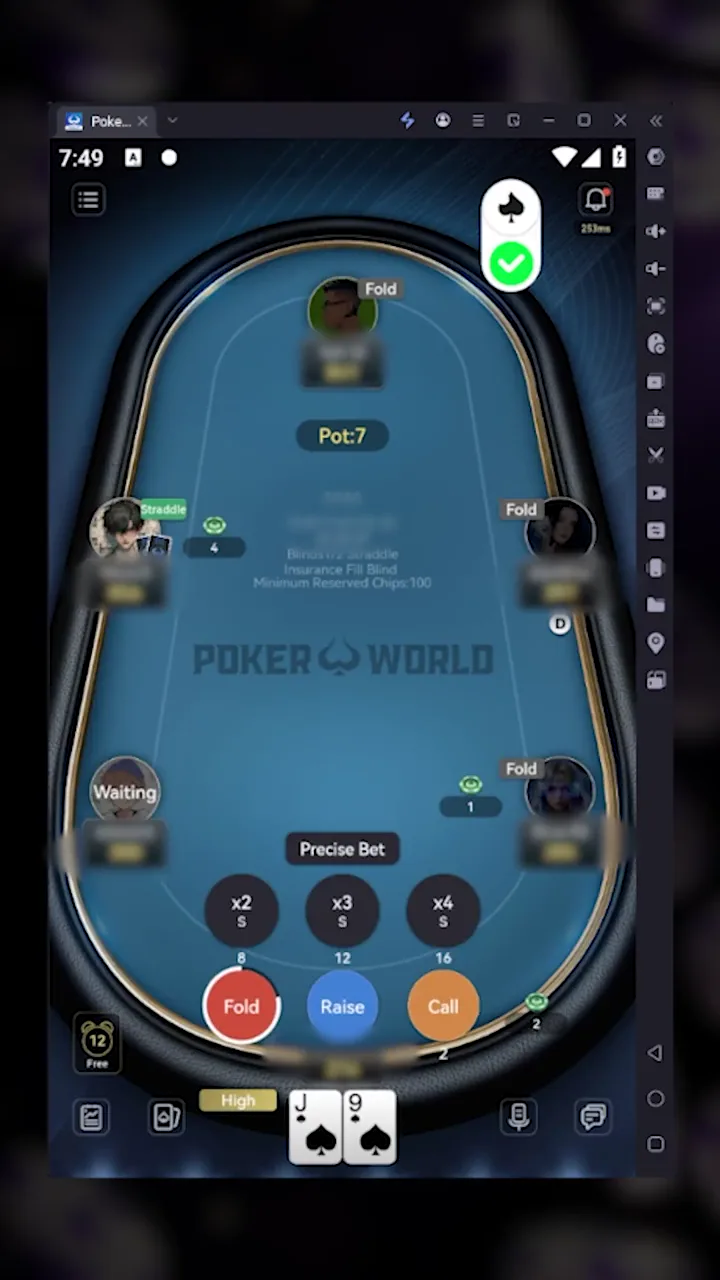
Poker-Eye reads the current hand, your hole cards, position, and supported table state. When available, it also factors in prior hands, VPIP/PFR, action timing, and observed tendencies.
 PokerWorld Compatible Workflow
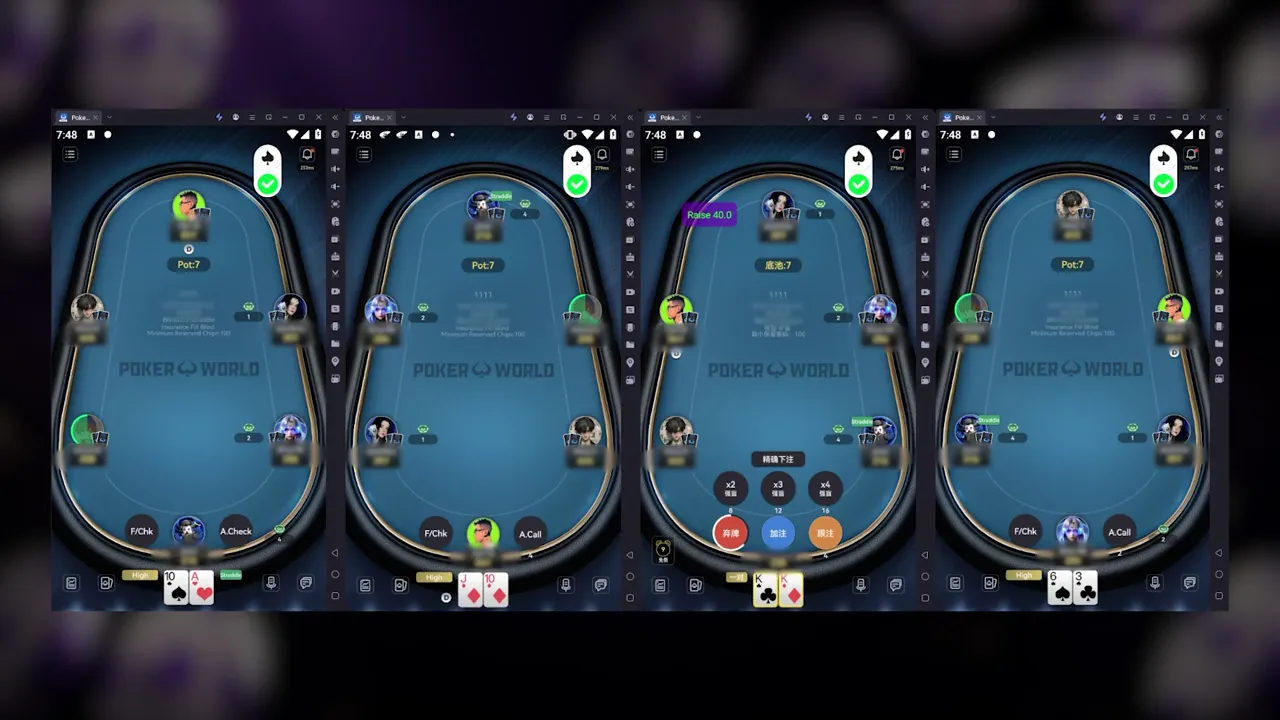
Use Poker-Eye with a currently supported PokerWorld configuration. Open PokerWorld and join each table manually, then use guidance mode for visible action cues or automatic mode for supported action clicks. Each table uses a separate Poker-Eye account and status indicator. PokerWorld Bot refers to the automatic mode of the same Poker-Eye application, not a separate download.

Four steps take you from a compatible installation to a controlled PokerWorld session.
Download the current APK and install Poker-Eye on a compatible Android phone running Android 9 or later, in a tested LDPlayer setup on Windows, or in MuMuPlayer for Mac on an Apple Silicon Mac. Then enter the Agent Code supplied by your agent or seller.
Launch PokerWorld and take a seat manually at a supported table. Poker-Eye does not choose a room, open a table, or take a seat for you.
Use guidance mode to follow the configurable action cue and act manually, or use automatic mode in the same Poker-Eye application to click the corresponding supported PokerWorld action.
Use a separate Poker-Eye account for each table, then use its status control to check readiness, change modes, pause Poker-Eye, or stop it and take over manually.
Each capability connects a confirmed Poker-Eye input or control with the result visible on a PokerWorld table.
Poker-Eye reads the current hand, your hole cards, position, and supported table state. When available, it also factors in prior hands, VPIP/PFR, action timing, and observed tendencies.
A Raise, Bet, Call, Check, or Fold cue appears over the room interface. You can adjust its size, color, and screen position.
The same Poker-Eye decision engine can click the corresponding supported in-game action. Opening the poker room and joining a table remain manual.
Each active table uses a separate Poker-Eye account and status indicator. The practical number of tables depends on your computer, emulator configuration, and available resources.
PokerWorld support depends on the current room, table, and session configuration. Confirm all three before you start.
Confirm the current PokerWorld build with Support before starting.
Check that the specific table configuration is currently supported.
Use a confirmed Android or emulator setup and one Poker-Eye account per table.
The icon and message appear together, so you can identify each table's status without relying on color alone.

A green check means Poker-Eye is ready to work with the current PokerWorld table.

Gray signal bars mean the connection, IP, or geolocation needs to be checked before automatic mode continues.

An orange warning means the available Fuel or current operating state needs attention.

A red cross means the selected game or table is outside the currently confirmed PokerWorld configuration. Check the setup with the Poker-Eye sales team.
Confirm the application, device or emulator environment, and activation method before opening a PokerWorld table.
Watch a full PokerWorld multi-table session with separate Poker-Eye accounts. The recording shows table status, live action cues, and native room controls throughout a real session.
The recording demonstrates product behavior only. It is not a claim about profit, win rate, account safety, or permitted use in every room or club.
Fuel is used per hand or round, and the rate depends on the room and game type. Ask the Poker-Eye sales team for the current PokerWorld rate before starting. Your first trial includes 100 Fuel. Arrange it through Sales or the landing-page chat.
Message the Poker-Eye sales team directly for current rates, trial access, setup, and product questions. Response times vary.
Poker-Eye supports confirmed PokerWorld configurations. Because public room and format coverage can change, verify your specific setup with the Poker-Eye sales team before starting.
No. PokerWorld Bot is the automatic mode of the same Poker-Eye application. The application also includes guidance mode for visible action cues.
Yes. In guidance mode, Poker-Eye displays a configurable action cue over the PokerWorld interface, and you complete the action manually.
Install and activate Poker-Eye, confirm your PokerWorld configuration with Support, join a table manually, and then select guidance or automatic mode.
Each Poker-Eye account works with one table. To run several PokerWorld tables at once, use a separate account for each table. The practical number depends on your computer, emulator configuration, and available resources.
Use Android 9 or later on a compatible Android phone, a tested LDPlayer setup on Windows, or MuMuPlayer for Mac on an Apple Silicon Mac.
Fuel is consumed per hand or round. The rate varies by room and game type, so ask the Poker-Eye sales team for the current value.
Download Poker-Eye, activate it with your Agent Code, and confirm your PokerWorld configuration with Support before joining a table.
18+. Poker involves financial risk. Check current PokerWorld rules and local requirements. Poker-Eye does not guarantee results or account safety.