
Live Decision Context
Poker-Eye reads the current hand, your hole cards, position, and supported table state. When available, it also factors in prior hands, VPIP/PFR, action timing, and observed tendencies.
 Suprema Poker Compatible Workflow
Poker-Eye supports Suprema Poker tables for NLH, NLHB, PLO, PLOB, PLO5, PLO5B, PLO6, and PLO6B. You open the room and join each table manually. The same Poker-Eye application offers guidance mode for visible action cues and automatic mode for supported in-game actions. Each table requires a separate Poker-Eye account.
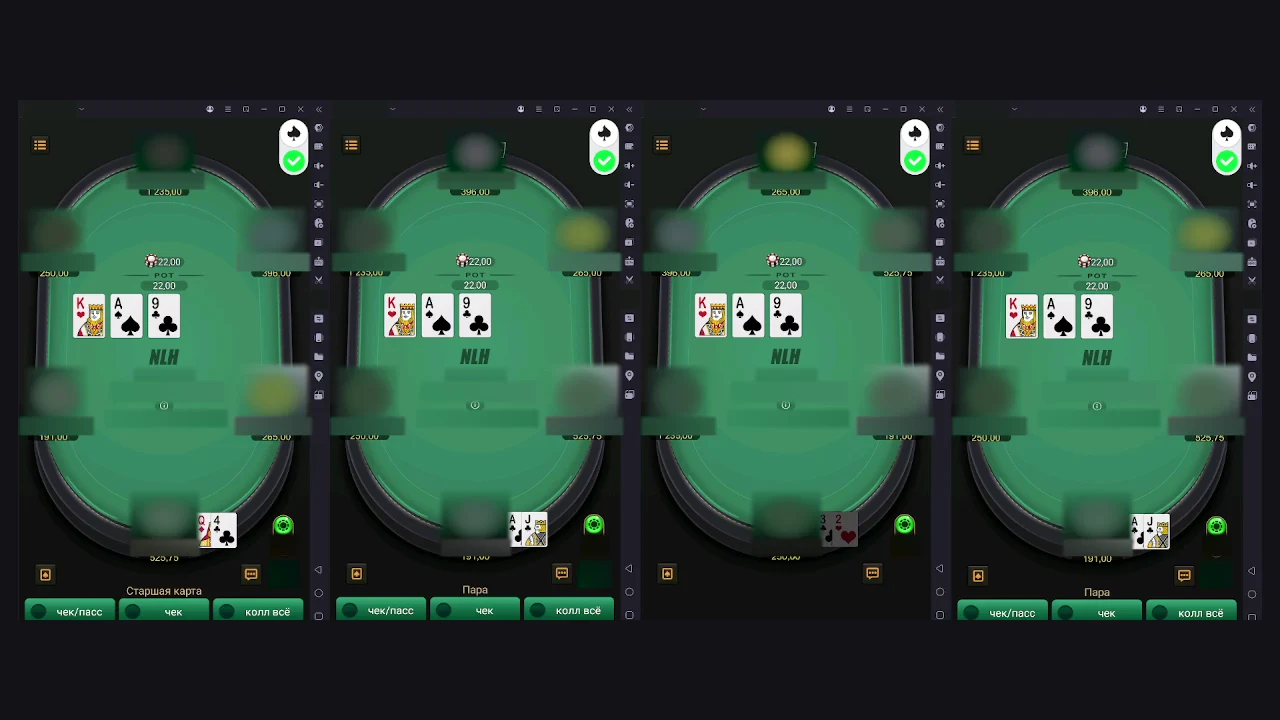
Four steps take you from a compatible installation to a controlled Suprema Poker session.
Download the current APK and install Poker-Eye on a compatible Android phone running Android 9 or later, in a tested LDPlayer setup on Windows, or in MuMuPlayer for Mac on an Apple Silicon Mac. Then enter the Agent Code supplied by your agent or seller.
Launch Suprema Poker and take a seat manually at a supported table. Poker-Eye does not choose a room, open a table, or take a seat for you.
Use guidance mode to follow the configurable action cue and act manually, or use automatic mode in the same Poker-Eye application to click the corresponding supported Suprema Poker action.
Use a separate Poker-Eye account for each table, then use its status control to check readiness, change modes, pause Poker-Eye, or stop it and take over manually.
Each capability connects a confirmed Poker-Eye input or control with the result visible on a Suprema Poker table.
Poker-Eye reads the current hand, your hole cards, position, and supported table state. When available, it also factors in prior hands, VPIP/PFR, action timing, and observed tendencies.
A Raise, Bet, Call, Check, or Fold cue appears over the room interface. You can adjust its size, color, and screen position.
The same Poker-Eye decision engine can click the corresponding supported in-game action. Opening the poker room and joining a table remain manual.
Each active table uses a separate Poker-Eye account and status indicator. The practical number of tables depends on your computer, emulator configuration, and available resources.
Use Poker-Eye only with the confirmed Suprema Poker formats below, and verify the current setup before the session.
The icon and message appear together, so you can identify each table's status without relying on color alone.
These images explain Poker-Eye's general status indicators. They are not screenshots of a Suprema Poker session.

A green check means Poker-Eye is ready to work with the current Suprema Poker table.

Gray signal bars mean the connection, IP, or geolocation needs to be checked before automatic mode continues.

An orange warning means the available Fuel or current operating state needs attention.

A red cross means the selected game is outside the confirmed Suprema Poker formats. Choose NLH, NLHB, PLO, PLOB, PLO5, PLO5B, PLO6, PLO6B.
Confirm the application, device or emulator environment, and activation method before opening a Suprema Poker table.
Fuel is used per hand or round, and the rate depends on the room and game type. Ask the Poker-Eye sales team for the current Suprema Poker rate before starting. Your first trial includes 100 Fuel. Arrange it through Sales or the landing-page chat.
Message the Poker-Eye sales team directly for current rates, trial access, setup, and product questions. Response times vary.
The confirmed formats are NLH, NLHB, PLO, PLOB, PLO5, PLO5B, PLO6, and PLO6B. Confirm the current room version and table configuration with the Poker-Eye team before starting. Other formats are not included in this support list.
It means the automatic mode of Poker-Eye, not a separate SupremaPoker download or an official Suprema Gaming product. The same application also has guidance mode, which displays the recommended action for you to carry out manually.
No. Suprema Poker's published rules prohibit unauthorized third-party helpers, bots, and automation. Poker-Eye's technical support does not change those rules or guarantee account safety. Do not use the software where it is prohibited. Read Suprema Poker's Rules
First check whether the room and club rules permit the intended use. Where it is permitted, install and activate Poker-Eye, open Suprema Poker, join a supported table manually, and choose guidance or automatic mode. You remain responsible for your actions and compliance.
Each Poker-Eye account works with one table. Each additional simultaneous table needs a separate Poker-Eye account. The practical number depends on your device, emulator configuration, and available resources; it is not the same as the room app's own account or multi-table rules.
Use a compatible Android phone running Android 9 or later, a tested LDPlayer configuration on Windows, or MuMuPlayer for Mac on an Apple Silicon Mac. This does not mean Poker-Eye supports iPhone or iOS.
Fuel is consumed per hand or round, and the rate depends on the room and game type. Ask the Poker-Eye team for the current Suprema Poker rate. A Suprema quote is not available in the site calculator until its verified billing data has been added.
Check the Suprema Poker rules, confirmed game format, and compatible setup before using Poker-Eye. Download and activation use the same Poker-Eye application and your Agent Code.
18+. Poker involves financial risk. Check current Suprema Poker rules and local requirements. Poker-Eye does not guarantee results or account safety.